Picture a dental office that gets a Tuesday call about implants. The front desk is busy, so someone jots the name on a sticky note. On Wednesday, a hygienist calls back and leaves a voicemail. By Friday nobody is sure who owns it, and the following week the patient books with another practice. The inquiry never had a home or a next step, so it quietly disappeared.
A CRM pipeline for small business fixes that by giving every open inquiry both. It's a visual board where each inquiry is a card and each column is a stage, such as new inquiry, contacted, appointment booked and quote sent. When something real happens, like a caller books an estimate or a quote goes out, the card moves to the next column. When the job is sold or the customer goes elsewhere, the card is marked won or lost.
For a small service business, a working pipeline does three things. It shows the team who needs a response today. It keeps inquiries from sitting untouched because everyone assumed someone else had them. And it shows the owner which channels bring in paying customers, not just phone calls. The examples below use Corevo CommandCenter, since that's the system we set up for clients, but the logic carries over to most CRMs built for service businesses.
How a CRM pipeline works
In a CRM, a contact is the person: name, phone, email and conversation history. An opportunity is a specific piece of work that person might buy from you, like a roof replacement, an implant consult or a listing appointment. The pipeline is the series of stages that opportunity moves through, and each one carries a status (open, won or lost), a value, a source and notes.
That separation matters for repeat business. A customer who wants a furnace tune-up in October and an AC quote in April can be one contact with two opportunities, so you track both jobs without losing the history between them. Most CRMs need a setting like "allow multiple opportunities per contact" turned on for that to work inside one pipeline; without it, the second job may fail to create its own card or get merged into the first one, so check this before you run a maintenance-plan campaign to past customers.
A pipeline is only as good as the practice behind it, though. A board that changes only when someone remembers to drag a card drifts from reality fast, and once the team stops trusting it, they stop checking it. That's why automation, covered below, matters as much as the stages themselves.
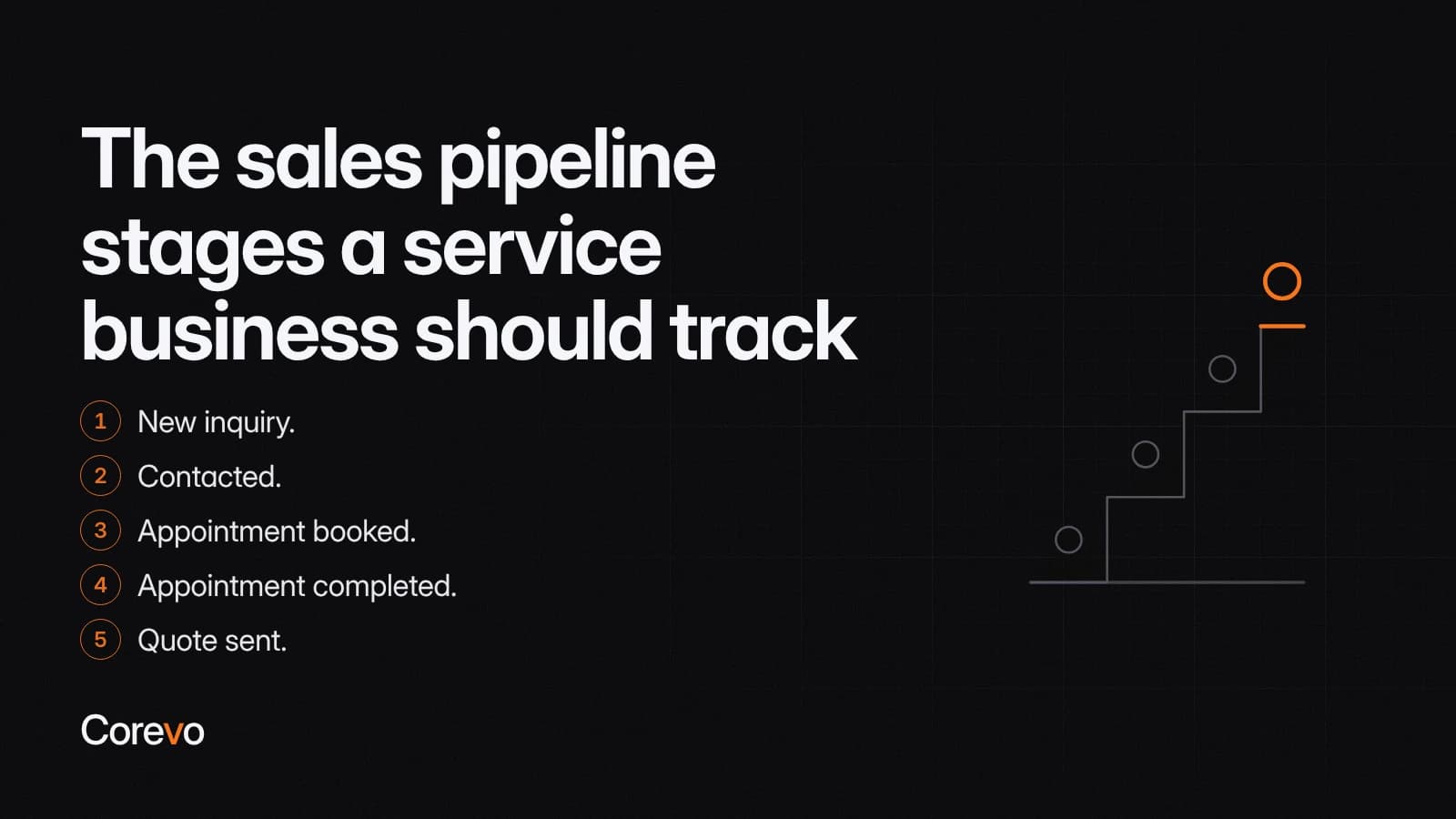
The sales pipeline stages a service business should track
Keep it short. The usual guidance is to keep stages action-oriented and avoid adding too many. A good test: every stage should answer "what has to happen next, and who does it?"
Here's a starter set that works for many service businesses:
- New inquiry. Someone called, texted, filled out a form or booked online, and no one has replied yet. Next step: respond.
- Contacted. A team member or the AI assistant has replied and gathered the basics. Next step: book the visit, consult or call.
- Appointment booked. The estimate, consult or discovery call is on the calendar. Next step: show up prepared.
- Appointment completed. The visit happened. Next step: send the quote or treatment plan.
- Quote sent. The customer has a price. Next step: follow up until they decide.
When the customer says yes, the opportunity's status changes to won. When they say no or go quiet for good, it changes to lost, with a reason. Reasons like price, timing, chose someone else or never responded turn your lost cards into a feedback loop instead of a dead end.
Adjusting stages for your industry
The structure stays the same. The labels change.
- Home services: Estimate scheduled, Estimate completed, Estimate sent.
- Dental and med spa: Consult booked, Consult completed, Treatment plan presented.
- Real estate: Consultation booked, Showing scheduled, Offer in progress.
- Coaches and professional firms: Discovery call booked, Proposal sent, Engagement letter sent.
A few rules keep any version honest. Define each stage by an event, not a feeling: "appointment booked" is a fact, "warm" is a mood. Give each stage an owner. And make sure every open card has a next action and a date attached to it.
How to automate moving contacts between stages
Here's what that looks like in practice. A plumbing company's website form fires at 9 p.m. on a Saturday. By the time the office opens Monday, a card already sits in New inquiry with the customer's phone number, the problem they described, and a note that nobody has replied yet. No one had to remember to create it.
That happens because the move was tied to something the system already saw, not to a person remembering to update a board. In Corevo CommandCenter, Workflows do this work: a workflow starts with a trigger, like a form submission or an appointment booking, and runs actions, like creating an opportunity or moving it to a new stage. A typical setup looks like this:
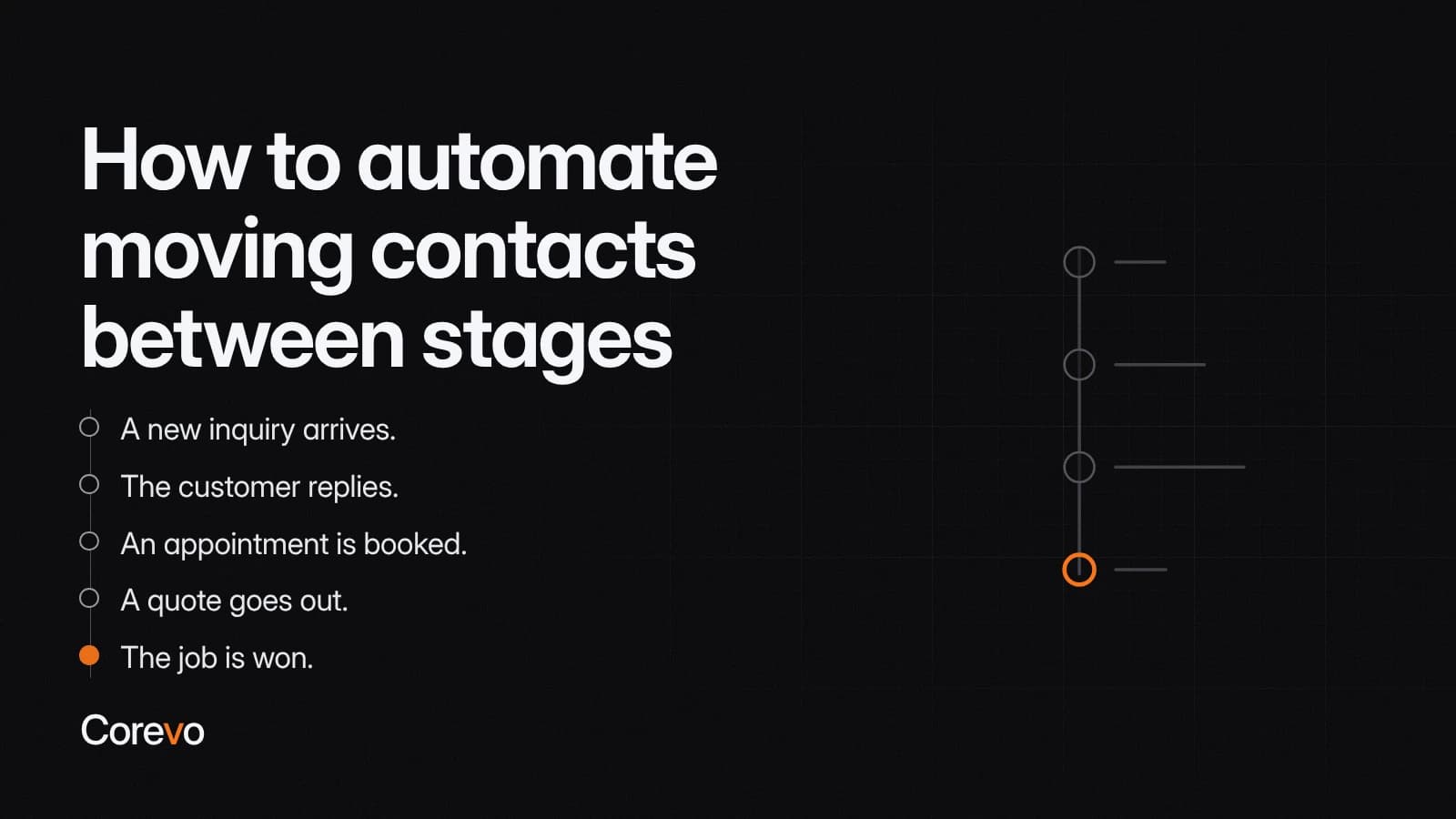
- A new inquiry arrives. A form submission, an online booking, a call the AI assistant handled or a missed call can each start a workflow that creates an opportunity in New inquiry. The assistant introduces itself as an AI assistant, saves the caller's details and logs the call, so the contact record already has the basics when your team picks it up.
- The customer replies. When the customer answers a text or email, a workflow can move the card to Contacted. After a phone conversation, a team member can move it by hand.
- An appointment is booked. A booking on one of your Calendars moves the card to Appointment booked, and confirmation and reminder messages can run from the same workflow.
- A quote goes out. If quotes are sent from other software, this may be the one move a person makes by hand. Once someone drags the card, a pipeline-stage trigger can start a follow-up sequence the moment it lands in Quote sent.
- A card stops moving. A stale-opportunity trigger can fire when an open opportunity sits too long. Use it to assign a task or remind the owner, so nothing quietly expires the way the implant inquiry did.
- The job is won. A status-change trigger can hand the job to scheduling, and a later step can send a review request through Reputation/Reviews once the work is finished.
Two settings are worth checking with whoever configures your CRM, since the exact behavior can depend on the version and the specific action used. Many systems let you configure the move-card action so it won't push a card backward, which keeps a late text reply from dragging a booked job back to New inquiry. And a duplicate-opportunity setting can stop a contact who fills out two forms from getting two separate cards for the same job. If that setting isn't on, you may end up with duplicates that need to be merged by hand, so it's worth testing with a real form submission before you rely on it.
Business texting also needs to be cleared before any of this runs by text: a local number registered through A2P 10DLC, or a toll-free number that's gone through toll-free verification. When Corevo sets this up, that usually means a number on the account registered for texting, with your existing line forwarding to it if you choose, so follow-up texts come from a number that's actually allowed to send them. Whether this is part of your setup, and whether porting your existing number is an option, depends on your plan, so confirm it during onboarding.
Keep judgment calls with people. Automation is good at "this happened, so do that." Deciding whether a job is truly lost, or whether a large quote deserves a call from the owner, belongs to your team.
How to track customer inquiries back to their source
A pipeline also shows where paying customers come from, if you capture the source at first contact. Most CRMs record a first attribution and a latest attribution on each contact. The first one is meant to stay fixed, so you can see what originally brought the person in, even as the latest-touch field updates with each new interaction, so it's worth confirming with your CRM that the first-touch value really is locked once set. Web forms can capture details like the referring page and UTM tags, so add UTM tags to the links in your ads, emails and Google Business Profile listing.
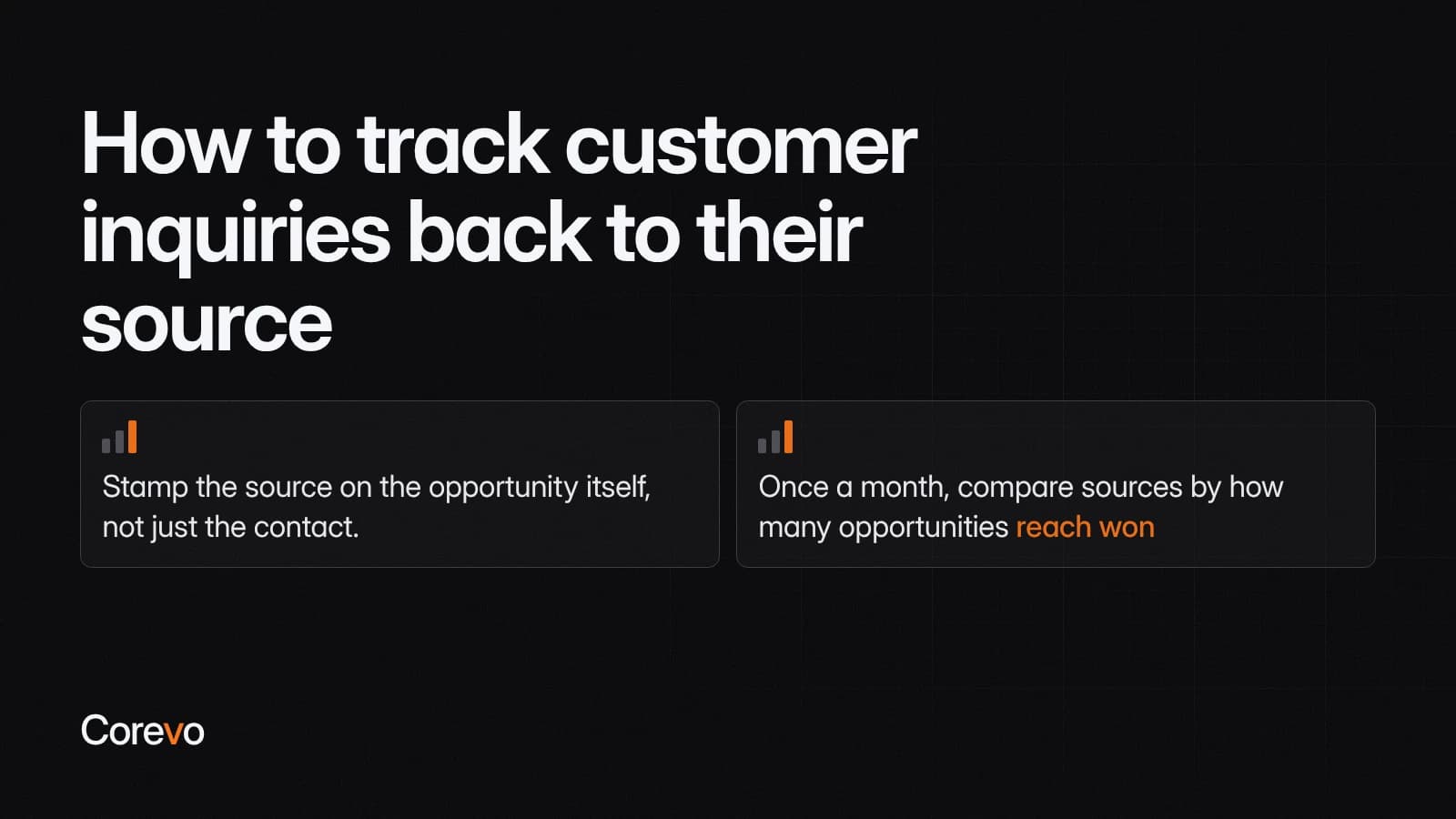
Then stamp the source on the opportunity itself, not just the contact. The workflow that creates the card can set a source such as "Website form," "Online booking" or "Referral," so the pipeline and your reports use the same language. For a closer look at where inquiries originate before they ever hit the board, our CRM and pipeline guides cover that side in more depth.
Phone calls need extra care. When your existing line forwards to one new number, the system knows a call came in but not which ad or mailer prompted it. The simple fix works: ask "How did you hear about us?" and save the answer to a field. The AI assistant can ask this as part of intake, and your team can ask it on the calls they take.
Once a month, compare sources by how many opportunities reach won, not just by how many inquiries come in. Dashboard widgets can group contacts and opportunities by attribution source, and your pipeline shows which ones turned into jobs. A channel that fills New inquiry but rarely produces a won job is costing your team time, even if it looks productive on paper.
A 15-minute weekly pipeline check
Automation keeps the board current. A short weekly review keeps it useful. Walk through these questions with whoever owns follow-up:
- Is anything in New inquiry more than a day old?
- Which stale cards need a call, and which should be closed as lost?
- Have quotes older than a week had a follow-up?
- Do the lost reasons show a pattern, such as price or slow response?
- Which source produced the most won jobs this month?
Also watch for stages nobody uses and newsletter signups clogging the board as if they were paying inquiries. Both make the pipeline harder to trust.
If you want stage definitions and the workflows that move cards automatically built out for your business, Corevo's onboarding team sets those up in CommandCenter and tests them with you before launch.