Imagine two technicians both getting booked into the same morning slot, in the same van the business owns, because nobody told the calendar the van was already spoken for. One appointment gets rescheduled on the spot, and the customer who waited for that slot is annoyed before the job even starts. That's the kind of gap an online appointment booking setup is meant to close.
Closing it takes a few steps, done in order: define each service with an accurate duration, add buffers, connect every calendar that holds busy time, ask the right questions at booking, then turn on confirmations and reminders. Skip one of those steps and the gap tends to show up later, usually when you're busy and least able to deal with it.
This guide walks through the setup step by step, from service list to test booking. If your main concern is people not showing up once they've booked, our guides on booking and no-shows cover that topic in depth.
The two problems a booking calendar system must prevent
Double bookings happen when the calendar doesn't know someone is busy. Common causes include staff events living on a separate Google or Outlook calendar, appointments running back to back with no travel or cleanup time, and shared resources like a treatment room or a truck that two people can book at once.
Wrong-service bookings happen when the customer can't tell which option fits. Common causes include vague service names, one calendar trying to cover many different jobs, missing intake questions and letting customers book technical services that really need a conversation first.
A good booking calendar system reduces both through structure, so the office isn't double-checking each booking by hand. No calendar setup removes every possible scheduling mistake, but a configured and tested one catches most of the common ones before they reach your team.
Step 1: Build your service list first
Before you open the calendar settings, write down every service you want people to book. For each one, note:
- The real duration. Use how long the job actually takes, not how long you wish it took. Check a few weeks of past appointments if you're unsure.
- Prep, cleanup or travel time. This becomes your buffer.
- Who can do it. Not every staff member offers every service.
- What it needs. A specific room, chair, machine or vehicle.
- What you need to know first. Address, equipment age, insurance, the reason for the visit.
This list drives every setting that follows. Skipping it is how a business ends up with one calendar trying to cover everything, which is where wrong-service bookings start.
Step 2: Choose the right calendar type
Corevo CommandCenter includes several calendar types. Which ones are available, and how many you can run, depends on your plan. Pick based on who performs the work and how many services you offer.
| Your situation | Calendar type to use |
|---|---|
| One person takes all appointments | Personal booking calendar |
| A team shares the same kind of appointment | Round Robin calendar |
| Several services with different lengths and staff | Service calendars shown in a Service Menu |
| Group sessions with limited seats | Class booking calendar |
A Round Robin calendar checks each assigned team member in turn and books the first one who is free. If nobody is free, that time doesn't appear. Service calendars let each service carry its own duration, assigned staff and buffer, and a Service Menu shows them together under one booking link, grouped by category.
Step 3: Set durations, intervals and buffers
These settings decide which times customers see, and getting them close to reality is what prevents the most common scheduling conflicts.
- Duration: how long each appointment lasts.
- Slot interval: how often a new appointment can start, such as every 30 or 60 minutes.
- Buffers: reserved time before or after an appointment. Buffers block other bookings, so a 30-minute post-buffer after a 9:00 to 10:00 job means the next opening is 10:30.
- Minimum scheduling notice: how far ahead someone must book, so a slot 20 minutes from now isn't offered when you need time to prepare.
- Date range: how far into the future people can book.
- Appointments per day and per slot: daily caps, and whether more than one person can share a time. For one-on-one services, keep it at one per slot.
A home services example: an HVAC tune-up might be a 60-minute appointment with a 30-minute post-buffer for drive time and a minimum notice of one business day. A med spa consult might be 30 minutes with a 10-minute buffer to reset the room.
Step 4: Connect every calendar that holds busy time
Your online booking calendar can only block times it knows about. Each staff member can connect a Google, Outlook or iCloud calendar as a conflict calendar. Events marked busy on that calendar block the same time on the booking page. Events marked free don't. A linked calendar goes further and brings those events onto the booking calendar, with an option for two-way sync. The exact behavior can differ slightly by provider and by whether two-way sync is turned on, so it's worth confirming for each calendar you connect rather than assuming it works the same way across Google, Outlook and iCloud.
Three habits close the remaining gaps:
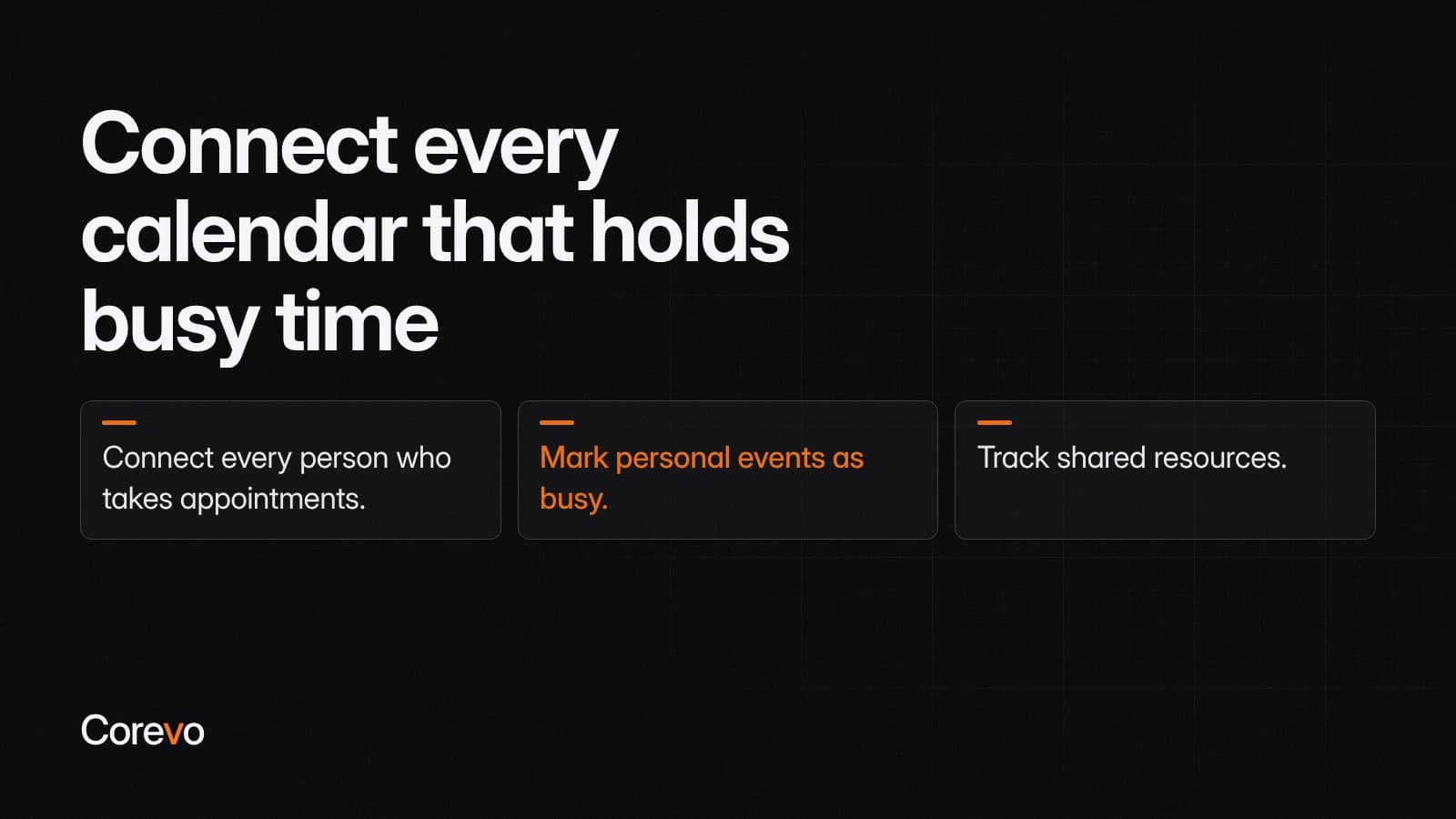
- Connect every person who takes appointments. A single unconnected calendar is a common way double bookings slip through.
- Mark personal events as busy. A dentist appointment saved as "free" won't block anything.
- Track shared resources. Service calendars can book rooms or equipment along with the service. Equipment shared across calendars can only be used in one appointment at a time, so two people can't reserve the same machine for the same hour.
Step 5: Ask the right questions at booking
Wrong-service bookings are mostly a design problem. Fix the design and most of the usual causes go away.
- Name services the way customers talk. "Furnace not heating" is clearer than "Diagnostic Level 2."
- Write a one-line description for each. Say what's included and who it's for.
- Add intake questions to the booking form. Ask for what you listed in Step 1, such as the service address or the reason for the visit.
- Assign only qualified staff. If only two hygienists do a certain treatment, only they should appear for it.
- Route complex jobs to a consult first. When customers can't judge the right service themselves, offer an estimate or consult appointment and book the actual work afterward.
One CommandCenter detail worth testing before you launch: custom booking forms apply when someone books a service calendar directly through its own link, but bookings made through a Service Menu use the default form. This can affect which intake questions actually show up, so if your intake questions matter, link people to the specific service, or confirm during testing that the default form still asks what you need.
AI can help here too, where it's part of your setup. Conversation AI can ask a few qualifying questions by text or chat and book on the right calendar, and Voice AI can be set up to choose between multiple calendars based on what the caller needs. Voice AI should introduce itself as an AI assistant.
Step 6: Turn on confirmations and reminders
A booking can trigger a confirmation right away and reminders before the appointment, once notifications are turned on for that calendar. Calendar notifications cover new bookings, reschedules, cancellations, reminders and follow-ups, by email, text, in-app alert or WhatsApp when WhatsApp is connected and using an approved message template.
Set these up on both sides:
- The customer gets the confirmation, reminders and a link to reschedule or cancel, so changing plans doesn't require a phone call.
- The assigned staff member gets notified too, so a new appointment isn't a surprise.
You can also decide whether online bookings confirm automatically or wait for your team to approve them. Automatic confirmation suits routine services. Manual review fits work that needs a quick check first, like a site visit outside your usual area.
Two practical notes on text reminders. Before automated texts can go out, the sending number needs to be registered for business texting, either through A2P 10DLC for a local number or toll-free verification for a toll-free number. That registration can take a little time, so it's worth starting it well before you want reminders live. Which number actually sends the texts, and whether that's a new number or your existing line, depends on how your plan and setup are configured.
For longer sequences, such as a prep checklist two days before a procedure, a workflow can start when a customer books and wait until a set time before the appointment.
Quick reference: problem and fix
| Problem | Setting that fixes it |
|---|---|
| Two customers booked at the same time | One appointment per slot, plus conflict calendars for every staff member |
| Appointments run into each other | Accurate durations and pre or post buffers |
| Someone books for 20 minutes from now | Minimum scheduling notice |
| Two people book the same room or machine | Rooms and equipment on service calendars |
| Customer picks the wrong service | Clear names, descriptions, intake questions and consult-first routing |
| Staff surprised by new bookings | Notifications to the assigned user |
Step 7: Test before you share the link
A short round of testing catches most problems before a real customer does. Before the link goes on your website or in your Google Business Profile, run through this checklist:
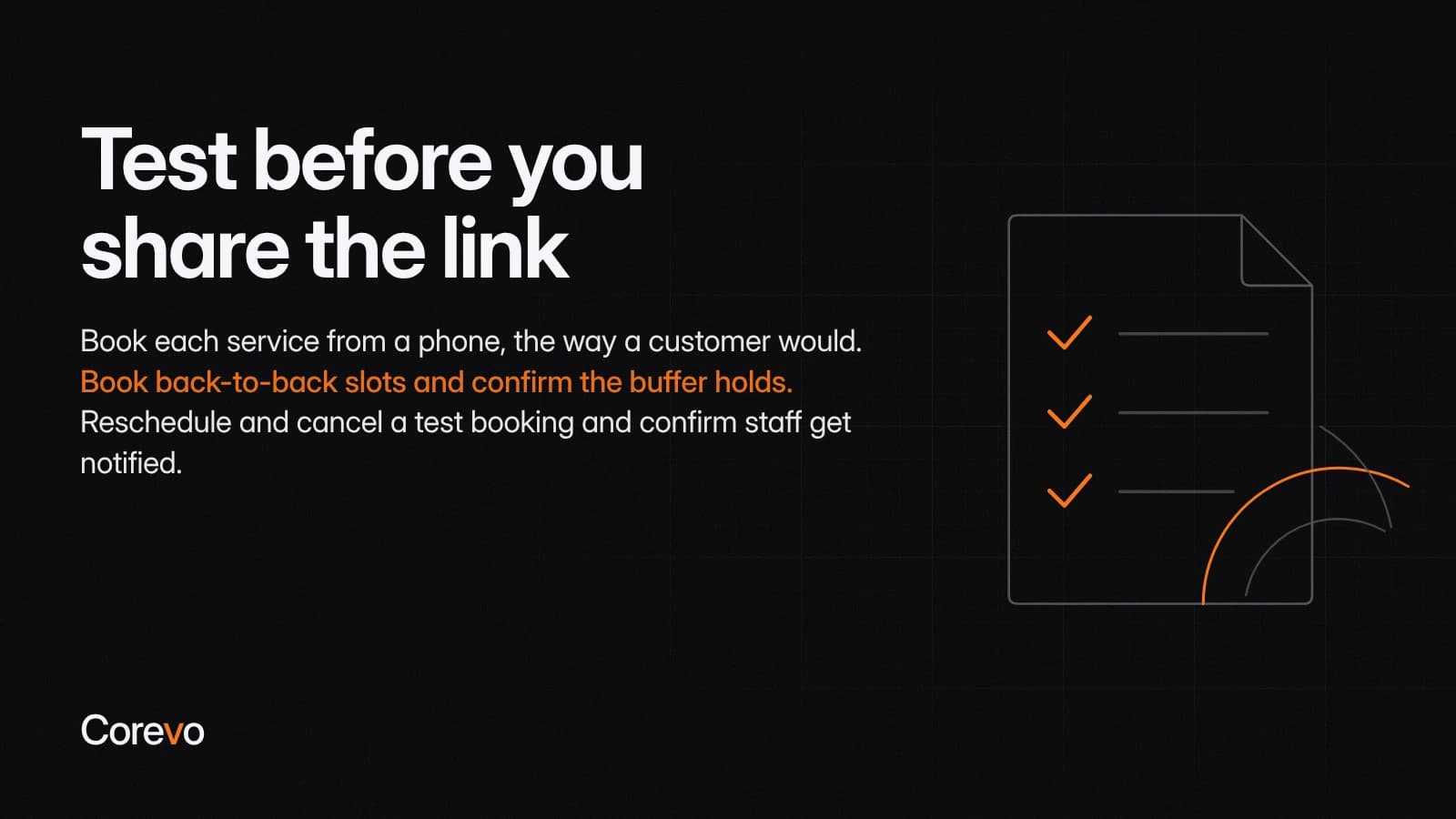
- Book each service from a phone, the way a customer would.
- Add a busy event to a staff member's Google or Outlook calendar and confirm that time disappears.
- Book back-to-back slots and confirm the buffer holds.
- Try booking inside the minimum notice window and confirm it's blocked.
- Check that the confirmation and reminders arrive, with working reschedule and cancel links.
- Reschedule and cancel a test booking and confirm staff get notified.
- Check time zones if you serve customers in more than one.
If you want this calendar structure, including service calendars, calendar connections and confirmation and reminder messages, built and tested for your business, Corevo's onboarding team can configure those pieces in CommandCenter, depending on what's included in your plan.